Send routes and workouts to your bike computer
Send a route or a scheduled workout to your connected Hammerhead or Wahoo, once or kept in sync.
Updated 2026-10-15
What this is for
Plan a route or schedule a workout in NeverChill, then send it to your bike computer so it's ready when you ride.
Before you start
- Connect a bike computer that can receive routes and workouts, like a Hammerhead Karoo or Wahoo. See Connect a Hammerhead Karoo or Connect a Wahoo bike computer.
- When you connected, you need to have allowed route and workout access. If not, you'll be asked to reconnect.
Send once, or keep it in sync
- Send once: send a route when you just need it for one ride.
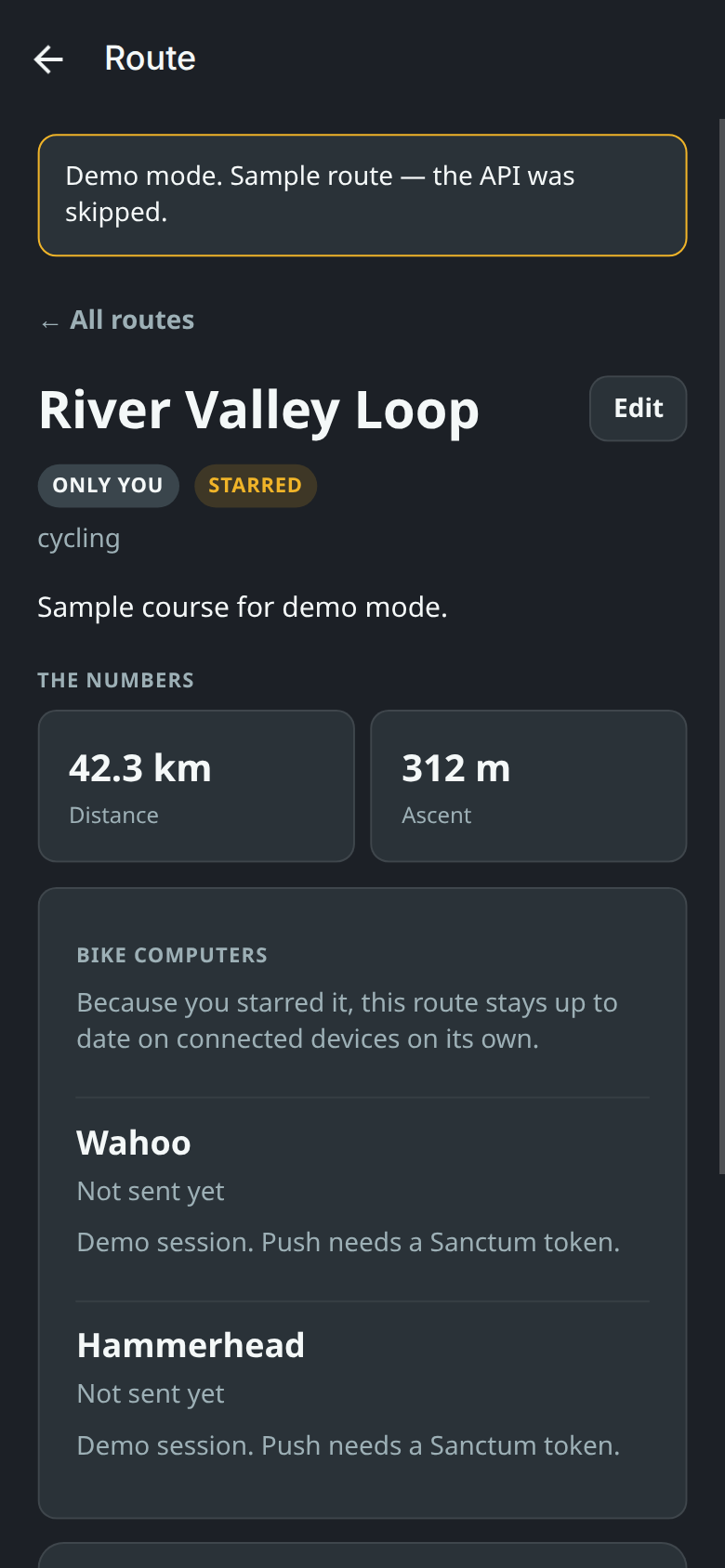
- Star it: star a route and it stays synced on your connected bike computers automatically. If you edit it, the update goes out on its own.
Send a route in the app
The NeverChill mobile app is in beta (TestFlight on iPhone, a preview build on Android).
- Tap Atlas and open your route.
- Scroll to Bike computers.
- Tap Send to and your device (for example Send to Wahoo).
- The status changes from Queued to Sending to Up to date.
To keep it synced, star the route at the top instead. After a change, tap Update and your device name to send the new version, or remove it with Remove from and your device name.
Send a route on the web
Open the route, find Bike computers, and choose Send to and your device for a one-off send. Or star the route to keep it synced.
Send a workout
Only scheduled, structured workouts can be sent.
In the app
- Tap Training and open a scheduled workout.
- Under Bike computers, tap Send to and your device.
- Once sent, the workout stays in sync when you edit or reschedule it. Tap Remove from and your device name to stop.
On the web
Open the scheduled, structured workout. Under Bike computers, choose Send to and your device. It's delivered for its scheduled date.
[Screenshot coming soon]
Good to know
- Wahoo shows scheduled workouts from today through the next six days. Later ones appear as the date gets closer.
- Disconnecting a bike computer removes the routes and workouts NeverChill sent to that device's account. They stay in NeverChill.
Troubleshooting
- Needs retry or That did not reach your device. Tap Retry and your device name.
- Reconnect and grant route permissions before sending routes. (or workouts). Tap Reconnect and allow route and workout access.
- You starred this route, but no connected device can receive it yet. Connect a bike computer that takes routes.
- Sending routes and workouts to this device is not switched on yet. We're waiting on the device maker to approve it. There's nothing to reconnect.
- The Send option is missing on a workout. Only scheduled, structured workouts can be sent.
Still stuck? In the app, go to Settings and tap Report a bug or idea under Help. On the web, choose Send feedback from the More menu.
Related articles
Related articles
- Connect a Hammerhead KarooLink your Hammerhead account so finished Karoo rides land in NeverChill and routes and workouts can go back to the Karoo.
- Connect a Wahoo bike computerLink your Wahoo account so finished rides land in NeverChill and routes and workouts can go to your ELEMNT.
- How device connections workConnect a bike computer or wearable once and your rides, recovery data, routes and workouts move on their own.
- Disconnect a device or delete its dataStop a device from syncing, and if you want, permanently delete everything it brought into NeverChill.